 Help Center
Sway Funded traders can use the following trading platforms, provided by our partner broker, Liquid Brokers:
- Liquid Charts
- Liquid Charts Pro
Please see the features & instructions below if you need guidance on how to install the platform.
Features
Liquid Charts Pro
Liquid Charts Pro is designed for traders who want more advanced tools and deeper trading insights.
Key features include:
- Advanced charting tools
Analyze markets and monitor trading opportunities in more detail. - Real-time trading insights
Track your trading activity and performance with live statistics. - Account and strategy management
Manage your trading accounts and activity from one platform. - Available on multiple platforms
Liquid Charts Pro can be accessed on:- Windows
- Mac
- Web Browser
Liquid Charts Pro is ideal for traders looking for more control, advanced analysis, and a professional trading experience.
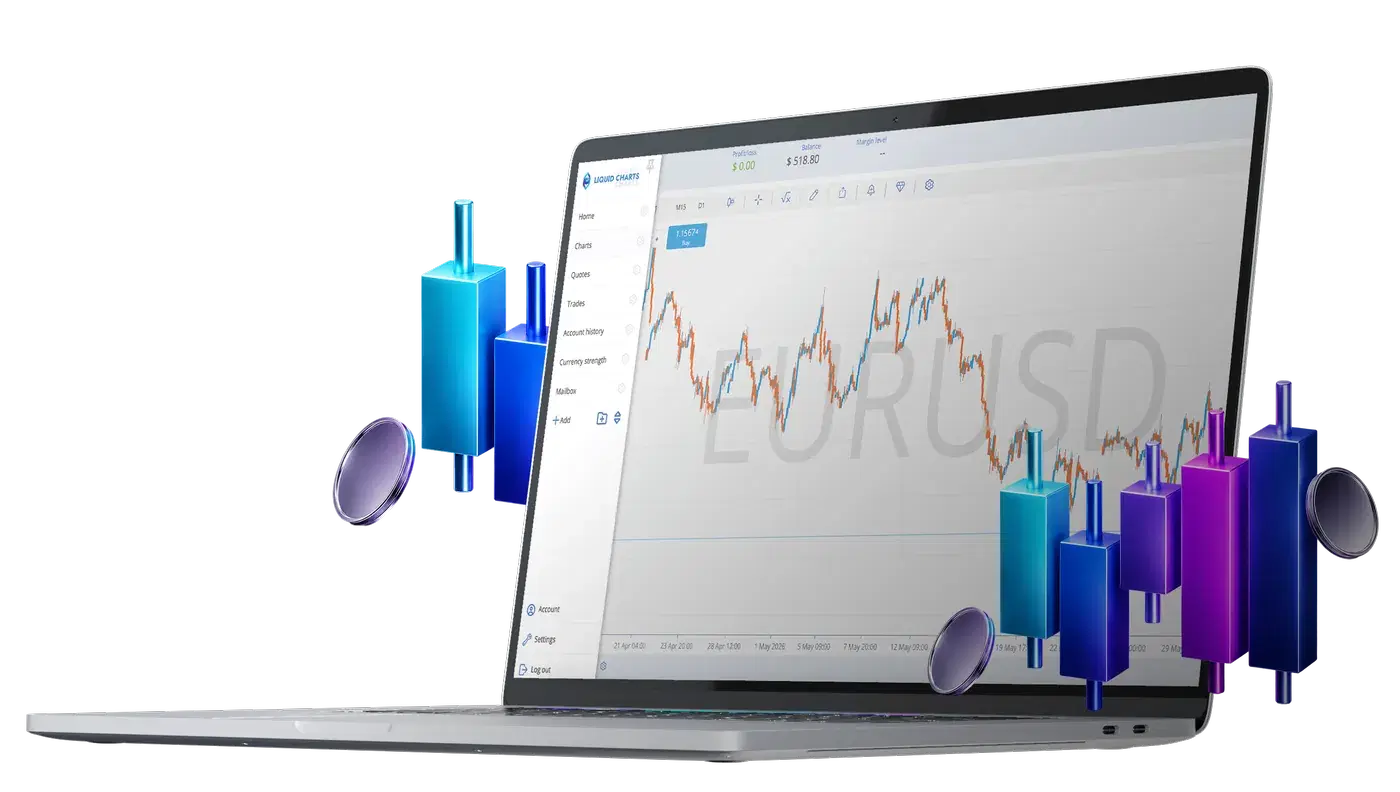
Liquid Charts
Liquid Charts offers a smooth trading experience across multiple devices.
Key features include:
- Multi-chart workspace
View and analyze multiple markets at the same time. - Fast execution
Place and manage trades quickly through a responsive platform. - Customizable layout
Adjust your charts, tools, and workspace to suit your trading style. - Available on multiple platforms
Liquid Charts can be accessed on:- Windows
- Mac
- Web Browser
This allows you to stay connected to the markets and manage your trades from wherever you are.

Instructions
Liquid Charts
Web Trader: Access the Liquid Charts web platform by clicking here
Windows Version: Download & install Windows Version by clicking here
Mac Version: Download & install the Mac version using this guide
Step 1: Confirm Model
You can confirm which model you have by clicking the Apple icon on your Mac and selecting "About This Mac". If you see "Chip Apple M1" or greater, you have Apple Silicon; otherwise, you have Apple Intel.
Step 2: Download for Apple Silicon or Apple Intel
After you have clicked "Download", save the zip folder to "Downloads" on your Mac, then double-click to unzip the folder.
Step 3: Move to "Applications" folder
After unzipping, drag Liquid Charts Desktop into your "Applications" folder. You will then see this in the "Applications" folder.
Step 4: Open the App and handle warning messages
Double-click the Liquid Charts Desktop icon to open the app.
You may see a message saying the app was downloaded from the internet. If this appears, click Open to continue.
If a security warning appears, do not select “Move to Bin.” Instead, click Cancel or Done and continue with the next steps below.
After this, open System Preferences and go to Security & Privacy.
You should see Liquid Charts Desktop listed. Click Open Anyway, then select Open on the next message.
On newer Mac devices, this may appear slightly differently. If you see Open Anyway, select it and the app should launch.
Liquid Charts Pro
Web Trader Pro: Access the Pro web platform here
Windows Pro Version: Download & install Windows Version by clicking here
Mac Pro Version: Download & install the Pro for Mac using this guide
Step 1: Check your Mac model
Click the Apple icon on your Mac and select About This Mac.
If your Mac shows Apple M1, M2, M3, or newer, select the Apple Silicon download.
If your Mac uses an older Intel processor, select the Apple Intel download.
Step 2: Download the correct version
Download the correct Liquid Charts Pro version for your Mac.
Once downloaded, save the ZIP folder to your Downloads folder, then double-click it to unzip.
Step 3: Move the app to Applications
After unzipping the folder, drag Liquid Charts Desktop Pro into your Applications folder.
Step 4: Open the app
Go to your Applications folder and double-click Liquid Charts Desktop Pro.
You may see a message saying the app was downloaded from the internet. If this appears, click Open.
Step 5: Allow the app in your Mac settings
If a security warning appears, do not click “Move to Bin.”
Instead, click Cancel or Done.
Then go to:
System Preferences → Security & Privacy
You should see Liquid Charts Desktop Pro listed. Click Open Anyway, then click Open on the next message.
On newer Mac devices, you may only see Open Anyway. If so, select it and the app should launch.
Android: Adding LCP to your Android phone's home screen
Step 1: Open Liquid Charts Pro
Open Liquid Charts Pro on Google Chrome and click on the three dots in the top right of the screen. Once the menu opens, click "Add to Home screen".

Step 2: Install
Click "Install" when this pop-up appears:
Step 3: Open Liquid Charts Pro
Click the new Liquid Charts Pro icon on your home screen to open the platform

IOS: Adding LCP to your IOS device home screen
Check the steps according to your browser:
Google Chrome
Step 1: Open Liquid Charts Pro
Open Liquid Charts Pro on Google Chrome and click the share button at the top right of the screen.

Step 2: Click "Add to Home Screen"
Step 3: Click "Add"

Step 4: Open Liquid Charts Pro
Click the new Liquid Charts Pro icon on your home screen to open the platform

Safari
Step 1: Open Liquid Charts Pro
Open Liquid Charts Pro on Safari and click the share button at the bottom of the screen.

Step 2: Add to Home Screen
Click "Add to Home Screen"

Step 3: Click "Add"
Step 4: Open Liquid Charts Pro
Click the new Liquid Charts Pro icon on your home screen to open the platform